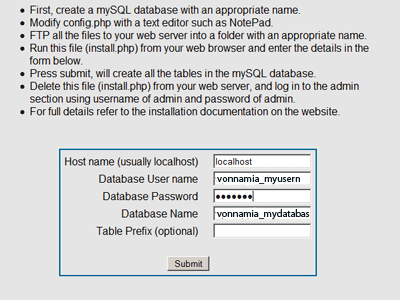
Log in to your Cpanel
Log into cPanel and click on the mySQL database link.
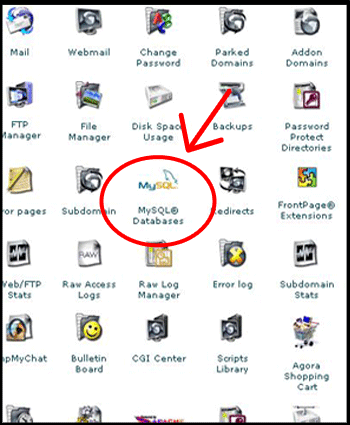
Create A New Database
Scroll down to where it says ‘new database’ and enter your choosen database name in the field and click on ‘Create Database’
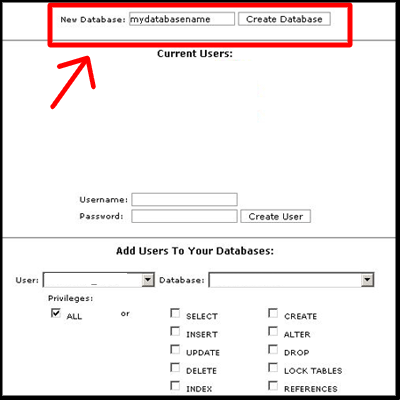
MySql Account Maintenance Page
Each step in the process will take you back and forth to the mySQL Maintenace page to verify that you have set up the process correctly and you will be able to see the information you have created.
Here you will see you have added the database.
Click on the Go Back button.
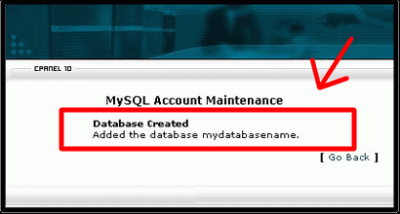
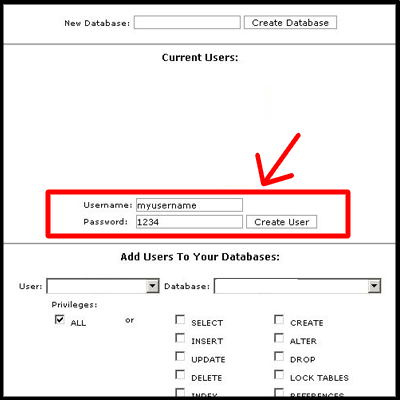
Enter Username and Password
Scroll down to username and password and enter your information. Click on create user.
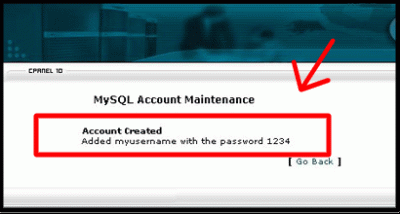
Back to MySql Account Maintenance Page
The username and password have been created for you database. Click on the Go Back button to return.
Add username to database
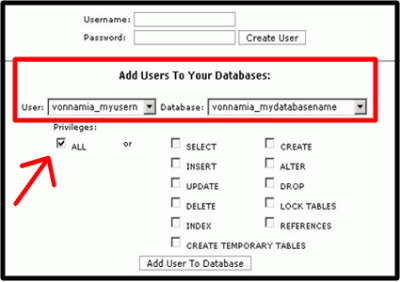
Scroll down to add users to your databases.
If there are no users or databases previously created you will only see one in each selection.
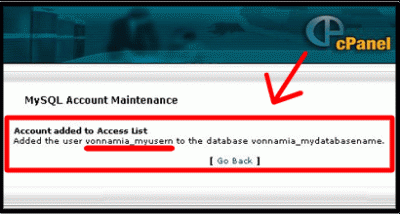
Choose the username that you want to add. Note that the username previously created “myusername” has been shortened to “myusern” This is the name that you need to use in the config.php file.
Example: “vonnamia_myusern” not “vonnamia_myusername”
Select the Database you created from the list.
Select the Checkbox “All Privileges”.
Click Add User To Database
MySql Account Maintenance
This will take you back to the MySql Account Maintenance page for verification, you will see the shortened Username there.
Click on the Go Back button and you will see the contents of your finished Database.
Running the install.php file
At this point you have created the database, created a user and allocated the user to the database.
You can now create the tables using the install.php script supplied with the zip file.
You will need to have the following information available :
database name
database username
database password
database host (usually local host but refer to your host documentation if you are not sure)
When you run the install.php file in your browser you will be presented with boxes as follows :